
Identity_Verification_Premium
H5-Lite_Pro-UI-Customization
H5-Lite_Pro-UI-Customization
The FaceID H5 verification product offers extensive page customization capabilities to meet various business needs. You can configure mobile H5 (lite) scenes in the FaceID console to easily customize the verification UIs.
# 1、UI customization
| No. | Page | Sample UI | Description |
|---|---|---|---|
| 1 | Verification homepage | 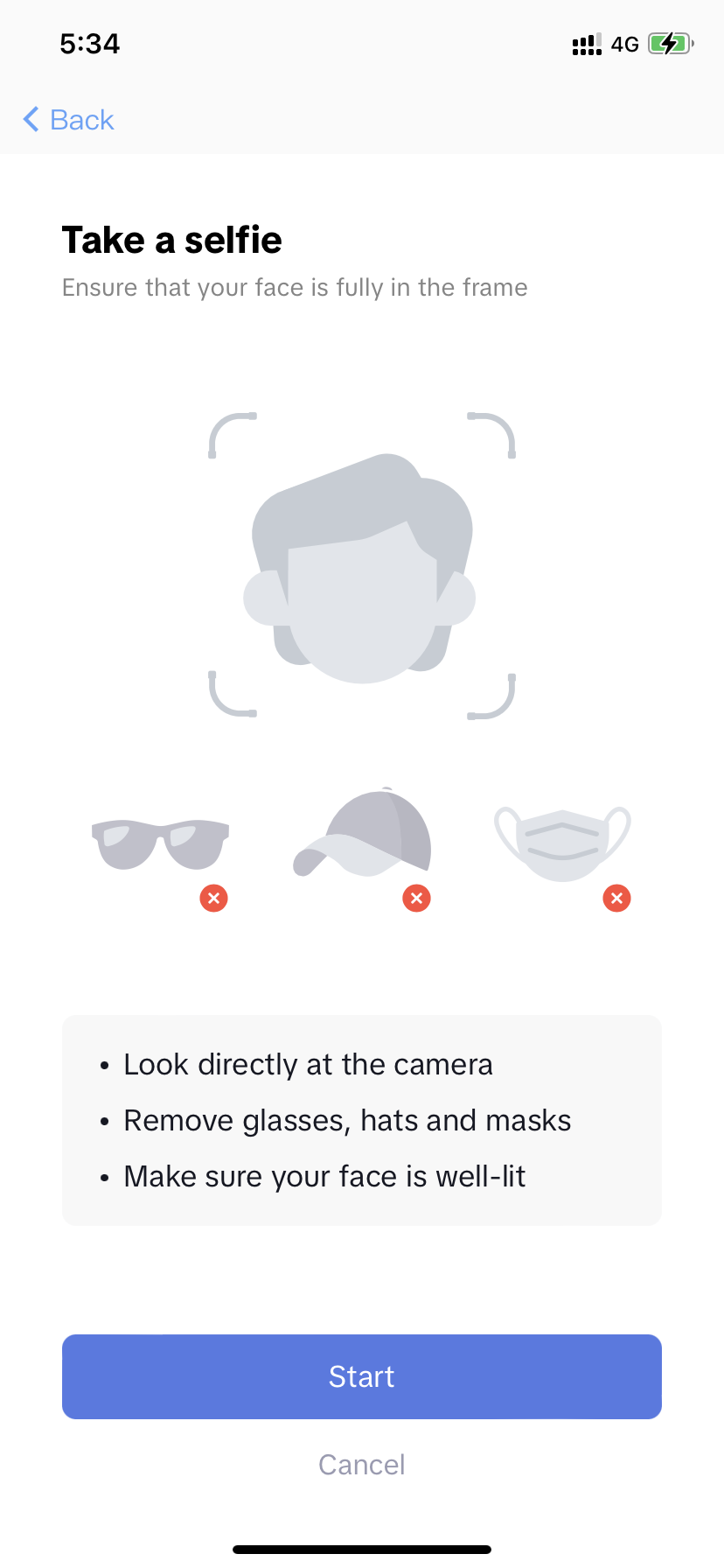 |
1、Verification homepage You can configure whether to display the homepage. 2、“Start” button You can configure the background color of this button. 3、“Cancel” button You can configure whether to display this button in the verification process. Users can tap this button to cancel the verification process. |
| 2 | Secondary and subsequent verification pages (record video for passive liveness detection) | 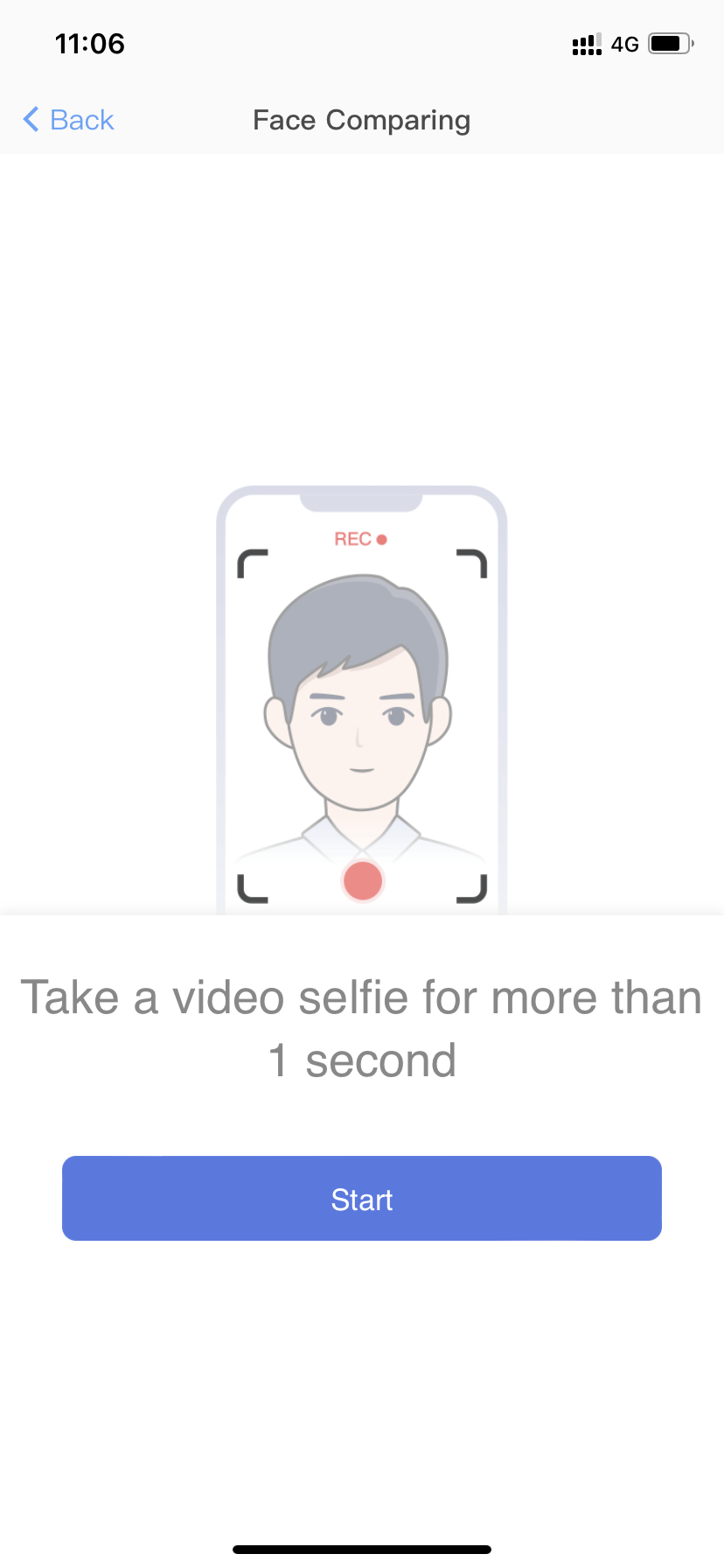 |
1、“Start” button You can configure the background color of this button. * Color configurations are consistent with the theme color. |
| 3 | Confirmation pop-up window for exiting verification | 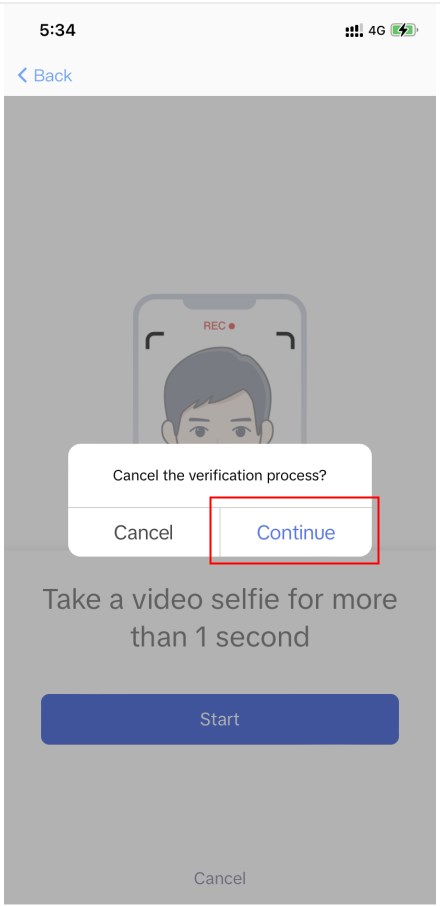 |
1、Continue verification You can configure the text color. |
| 4 | Notification that appears at the top of every page in the verification process | 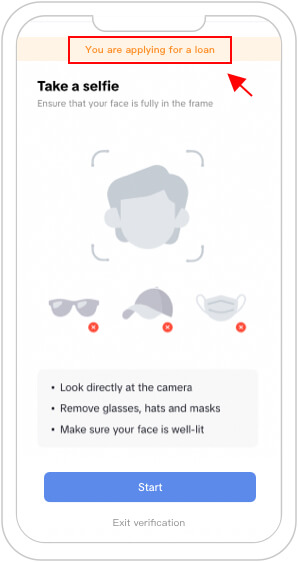 |
1、Notification background You can configure the background color. 2、Text You can configure the text (up to 2 lines). You can configure the text color. |
# 2、Configuration priority
The process and UI configurations in FaceID are applied based on their priorities. If conflicting configurations exist, the configuration with a higher priority takes precedence over the one with a lower priority. The following lists the configurations from the highest priority to the lowest priority.
- The scene_id specified in the Lite-GetToken API.
- The default scene configured in the mobile H5 scenes in the console.
- The default FaceID configuration.
 京公网安备 11010802025957号